
Listen to this Post
Introduction:
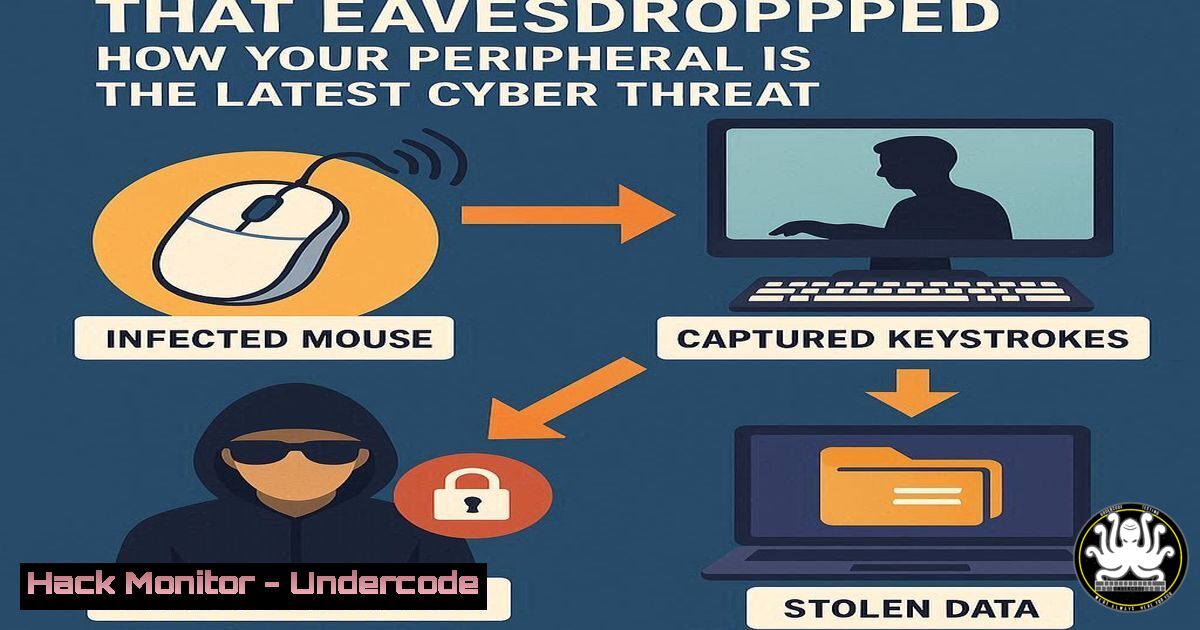
A groundbreaking study reveals that ordinary computer mice can be transformed into covert listening devices. By capturing sound vibrations through their internal sensors, these ubiquitous peripherals can, with minimal signal processing, reconstruct clear speech. This acoustic side-channel attack underscores that modern cybersecurity extends far beyond software and networks into the realms of physics and hardware.
Learning Objectives:
- Understand the principles of acoustic side-channel attacks using common hardware.
- Learn to identify and mitigate potential data exfiltration via peripheral devices.
- Implement system hardening and monitoring techniques to detect such covert activities.
You Should Know:
1. Understanding Acoustic Data Exfiltration
The core of this attack lies in using a device’s accelerometer or sensor data to capture vibrations. While the specific exploit code is not publicly available, the concept can be demonstrated using audio capture and processing on a compromised system.
Verified Command & Code Snippet:
 Record raw audio data from a system's microphone for analysis
arecord -d 10 -f cd -t wav -r 44100 suspect_audio.wav

Convert the audio file to a raw data file for signal processing
sox suspect_audio.wav -t raw -r 44100 -e signed-integer -b 16 suspect_audio.raw
Step-by-step guide:
The `arecord` command is a Linux utility for recording audio. The flags `-d 10` set the duration to 10 seconds, `-f cd` sets the format to CD quality, and `-r 44100` sets the sample rate. This creates a high-quality WAV file. The `sox` command (the “Swiss Army knife of sound processing”) then converts this WAV file into a raw data file. This raw data is what an attacker would process using custom algorithms, such as a Fast Fourier Transform (FFT), to isolate and reconstruct speech from ambient desk vibrations.
2. Monitoring for Unauthorized Audio Drivers
An attacker would need to install or manipulate audio drivers to facilitate this eavesdropping. Monitoring your system for unexpected audio devices is a critical first line of defense.
Verified Windows Command:
 Get a list of all audio devices and their associated drivers
Get-PnpDevice -Class AudioEndpoint | Format-List FriendlyName, Status, InstanceId

Cross-reference with driver files
Get-PnpDeviceProperty -InstanceId "YOUR_DEVICE_INSTANCE_ID" | Where-Object {$_.KeyName -eq "DEVPKEY_Device_DriverFiles"}
Step-by-step guide:
Run the first PowerShell command as Administrator. This will list all audio endpoints (like speakers and microphones) and their current status (OK/Error/Disabled). The `InstanceId` is a unique identifier. Use this ID in the second command to retrieve the specific driver files associated with that device. Look for any unknown or recently modified drivers. A mismatch between the hardware present and the drivers loaded could indicate a virtual audio device created by malware.
3. Hardening System Against Unauthorized Peripheral Access
Preventing malicious software from interacting with your hardware is paramount. This can be achieved through Device Installation Restriction policies.
Verified Windows Command & Tutorial:
 Enable a Group Policy to prevent installation of devices not described by other policy settings
 Run PowerShell as Administrator
Set-ItemProperty -Path "HKLM:\SOFTWARE\Policies\Microsoft\Windows\DeviceInstall\Restrictions" -Name "DenyUnspecified" -Type DWord -Value 1
Step-by-step guide:
This command modifies the Windows Registry to enforce a strict device installation policy. By setting the `DenyUnspecified` value to 1, you are instructing Windows to block the installation of any device that isn’t explicitly allowed by another policy. This would prevent a malware payload from installing a fake driver for your mouse or creating a virtual audio device. This is an aggressive setting and should be tested in a non-production environment first, as it may block legitimate new hardware.
4. Linux Hardware Monitoring with lsinput
On Linux systems, you can monitor for all input devices, which is where a manipulated mouse would appear.
Verified Linux Command:
 Check if lsinput is installed (part of input-utils package)
sudo apt-get install input-utils

List all input devices and their capabilities
sudo lsinput
Step-by-step guide:
After installing the `input-utils` package, run sudo lsinput. This command provides a detailed dump of all input devices recognized by the kernel. You will see your keyboard, mouse, and potentially other devices. Examine the output for devices that shouldn’t be there or for a mouse that reports having more capabilities (like an event type for sound) than a standard mouse should have. This level of visibility helps in establishing a baseline of normal hardware.
- Analyzing Process and Network Connections for Data Exfiltration
Any captured audio data must be sent to the attacker. Monitoring for suspicious outbound connections from processes associated with your peripherals is crucial.
Verified Linux & Windows Commands:
 Linux: Monitor network connections in real-time, filtering for ESTABLISHED connections
sudo netstat -tunap | grep ESTABLISHED
 Windows: List all active TCP connections and the process owning them
Get-NetTCPConnection -State Established | Select-Object LocalAddress, LocalPort, RemoteAddress, RemotePort, OwningProcess | Format-Table
 Then find the process name
Get-Process -Id <OwningProcess>
Step-by-step guide:
On Linux, the `netstat` command with the `-tunap` flags shows TCP/UDP connections, numerical addresses, and the associated Process ID (PID). Piping to `grep ESTABLISHED` filters for active connections. On Windows, the `Get-NetTCPConnection` cmdlet fetches connection data, and `Get-Process` reveals the program responsible. Look for unknown processes making connections to external IP addresses, especially on non-standard ports.
6. Implementing Application Whitelisting with AppLocker
A definitive way to block the execution of malicious payloads is to implement application whitelisting.
Verified Windows Tutorial (Group Policy):
1. Open the Local Group Policy Editor (`gpedit.msc`).
- Navigate to: Computer Configuration -> Windows Settings -> Security Settings -> Application Control Policies -> AppLocker.
- Create new rules for Executable, Windows Installer, Script, and Packaged app rules.
- Use the “Path” condition to create a default deny rule, then create allow rules for trusted directories like `C:\Program Files\` and
C:\Windows\.
Step-by-step guide:
AppLocker allows you to specify which programs are permitted to run. By creating a default deny-all rule and then explicitly allowing applications from trusted paths like C:\Program Files\, you prevent any malware, including a mouse eavesdropping payload, from executing if it is dropped into a temporary or user directory. This drastically reduces the attack surface.
7. PowerShell Logging for Malware Detection
Many advanced attacks use PowerShell. Enabling deep logging can help you detect malicious scripts.
Verified Windows Command & Configuration:
 Enable PowerShell Script Block Logging (Requires Admin)
Set-ItemProperty -Path "HKLM:\SOFTWARE\Policies\Microsoft\Windows\PowerShell\ScriptBlockLogging" -Name "EnableScriptBlockLogging" -Value 1
Step-by-step guide:
This registry change enables detailed logging of all PowerShell script blocks that are executed, regardless of how they were invoked (interactive, script, etc.). The logs are then visible in the Event Viewer under Applications and Services Logs -> Microsoft -> Windows -> PowerShell -> Operational. An analyst can search these logs for suspicious commands or encoded scripts that might be part of a payload designed to activate and use a compromised peripheral.
What Undercode Say:
- The attack surface is no longer virtual; it is now physical and pervasive. Every component with a sensor is a potential data leakage point.
- Traditional network-centric defense models are insufficient. A zero-trust approach must be extended to hardware firmware and device drivers.
The “listening mouse” hack is not an isolated threat but a harbinger of a new class of physical-cyber attacks. It demonstrates a critical shift where the barrier between the digital and physical worlds is dissolving. Defenders can no longer assume that a USB mouse is just a mouse; its firmware and sensor data streams must be considered untrusted until proven otherwise. This necessitates a fundamental re-architecting of endpoint security to include hardware integrity verification and strict control over inter-device communication buses. The focus must expand from protecting data-in-transit and data-at-rest to also securing data-at-vibration.
Prediction:
This research will catalyze a new arms race in hardware supply chain security and peripheral firmware validation. Within two years, we predict the emergence of dedicated security standards for “dumb” peripherals, the integration of hardware root-of-trust verification for mice and keyboards, and a new market segment for “acoustic-dampened” or “signal-jammed” computer workstations. Furthermore, insurance underwriters for cyber-policies will begin mandating hardware audits, making physical layer security a board-level concern, not just an IT problem.
🎯Let’s Practice For Free:
IT/Security Reporter URL:
Reported By: Lis Tahirbegolli – Hackers Feeds
Extra Hub: Undercode MoN
Basic Verification: Pass ✅


